Flipkart Label Crop Guide — Print Perfect 4x6 Labels Every Time (2025)
I spent three weeks confused about why my Flipkart dispatch rate was dropping. I shipped orders on time my products were packed right. The E-Kart agent showed up every day. My RTD breach rate kept climbing.
The answer was simple. I printed Flipkart labels from the A4 PDF without cropping them. The barcodes printed at the wrong size. The E-Kart scanner failed to read them. Every failed scan was a breach record in Flipkarts system.
Once I fixed the label format my RTD breach rate dropped to near zero within a week.
What Is an RTD Breach and Why Does It Matter?
RTD stands for Ready to Dispatch. A breach happens when an order that should have been dispatched is not picked up successfully. Failed barcode scans at pickup create RTD breaches. The system registers the order as not dispatched even if your parcel was physically ready.
Flipkart rates sellers as Bronze, Silver or Gold. The Gold tier gives you a 20% discount on shipping fees faster payment cycles, better product visibility in search and access to major sale events. To be Gold you need your RTD breach rate below 1%.
If you do 300 orders per week and one bad label batch creates six or seven failures you can hit that 1% threshold in a single morning.
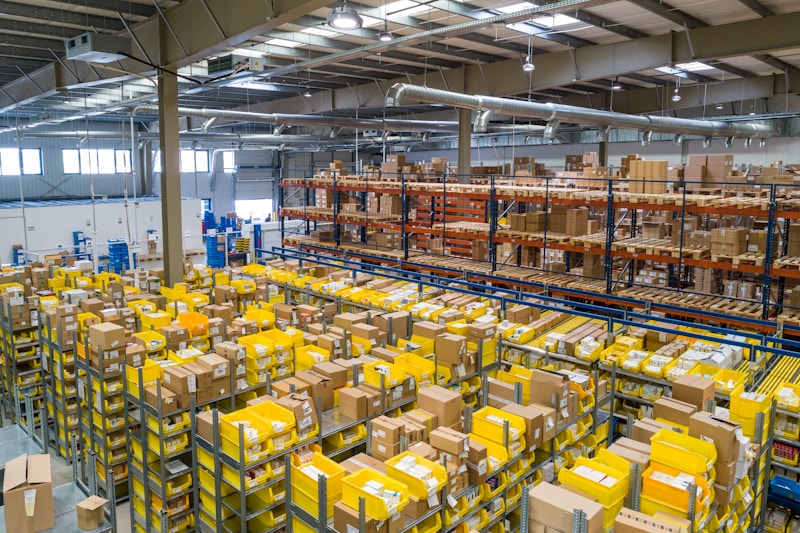
Ecommerce packages delivery
I found Flipkart labels to be more demanding than Meesho labels when it came to barcode clarity. Once I added basic [label cropping](/blog/how-to-crop-meesho-labels-for-thermal-printing) to my workflow the processing time actually went down.
Why Flipkart Labels Need Special Handling
Flipkart Seller Hub delivers label PDFs in A4 format. The actual label content sits in a portion of that A4 page surrounded by margins. When you send that A4 PDF to a 4-inch printer the printer cannot fit A4 content onto a 4x6 roll correctly. The output is distorted. The barcode fails to scan.
Cropping removes the margins. Resizes the content to exactly 4x6 inches. The barcode prints at the correct size. The E-Kart scanner reads it every time.
How to Crop Flipkart Labels
1. In Flipkart Seller Hub go to My Orders. Filter by Ready to Dispatch. Select the orders you want to ship. Click Download Labels.
2. Go to ecomcroptoolkit.com. Open the Flipkart Label Crop tool.
3. Upload your downloaded PDF.
4. Choose Smart Crop or Regular Crop. Smart Crop detects the barcode position automatically. Crops with precision. Regular Crop uses fixed dimensions. Is useful for older format labels.
5. Download the PDF.
6. Print at Actual Size. Not Fit to Page. Never Fit to Page.
Smart Crop vs Regular Crop
The Smart Crop option is what I use for all my Flipkart labels. It identifies the barcode and the label content area precisely. The output is always centred correctly on the 4x6 label.
Regular Crop is a fallback. If a label batch produces an unexpected result with Smart Crop switching to Regular Crop often resolves it.
Processing Bulk Flipkart Orders
The crop tool handles batches without any special setup. Upload a PDF with 400 pages. Every label is processed automatically. The output is a PDF ready to print. The whole process takes well under a minute.
For sellers doing over 100 orders daily this batch capability is useful. Manually adjusting labels one at a time is not an option at that scale.
Conclusion
Flipkart label cropping is a habit that has a big impact on your seller performance. It costs nothing. Takes two minutes. The free tool, at ecomcroptoolkit.com/flipkart does the cropping. The output is ready to print without any adjustment.